
History
History lists every merge of your store, whether you merged by hand, from Smart Suggest or with Automerge. Use it to check what a merge did, to fix a step that failed, and to undo a merge.
Each row is one merge. Select a row to open its details.
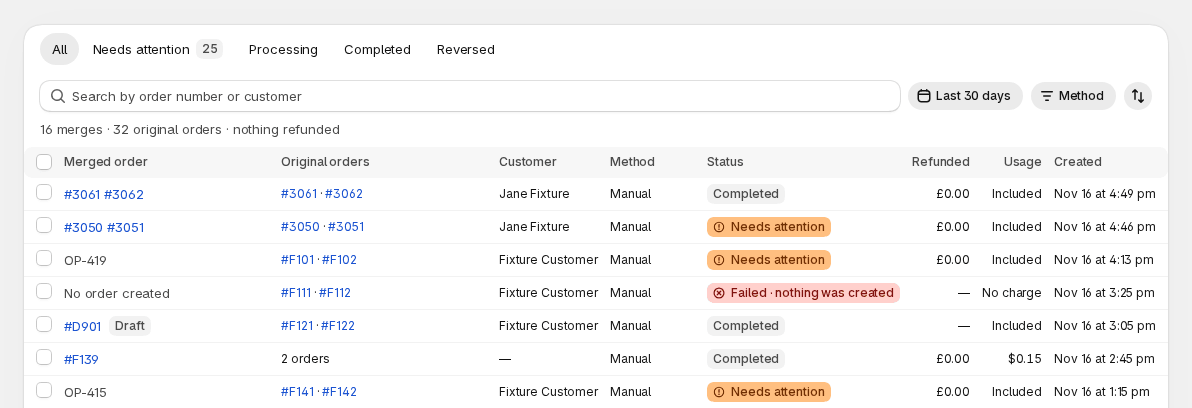
The views
Section titled “The views”The row of buttons above the table filters the list by state:
- All shows every merge, including the ones that failed.
- Needs attention shows merges that made their order but have a step that failed, merges that never finished, and merges whose undo stopped halfway. A number on the button counts them for the whole store, whatever filter you set.
- Processing shows merges that are waiting or still running. Merges run in the background, so you can leave the page. A merge still running after 30 minutes moves to Needs attention, and one that was only waiting moves to Failed.
- Completed shows merges that finished with nothing to fix.
- Reversed shows merges you undid, fully or partly.
A merge that failed before creating anything shows only in All.
The merges table
Section titled “The merges table”| Column | What it shows |
|---|---|
| Merged order | The order Mergify created, with a Draft tag when it made a draft order. A Failed merge shows No order created. A merge still being made shows Being created, and one that stopped without an order shows its number, such as OP-1042. |
| Original orders | The orders that were merged. Three show, and +2 and so on open the rest. |
| Customer | The customer the orders belong to. |
| Method | Manual, Smart Suggest or Automerge. |
| Status | Queued, Processing, Needs attention, Completed, Reversed, Partially reversed, or Failed · nothing was created. |
| Refunded | The shipping Mergify refunded for this merge. |
| Usage | Included when the merge used one of your included merges, No charge, or the amount charged. For amounts and how charges work, see Plan & usage. |
| Created | When the merge was created. |
The table shows 50 merges per page. On a phone the table becomes a list.
Find a merge
Section titled “Find a merge”- Search by order number or customer looks at original and merged order numbers and at customer names. Type at least two characters, or an order number. A search covers every date unless you pick a date range.
- The date button shows the range in use, Last 30 days to start with. Select it to pick Today, Last 7 days, Last 30 days, Last 90 days, Last 12 months, All time or Custom range. Without a search, History shows the last 30 days.
- Method keeps only the merges made by hand, from Smart Suggest, or by Automerge. You can pick more than one.
- The sort button (the one with the sort icon) opens Newest first and Oldest first.
Each date range or method you pick appears as a chip under the bar. Remove a chip to drop that filter, or use Clear all.
Under the bar, a line gives the totals for what you filtered: how many merges, how many original orders, and how much shipping was refunded. The totals cover date ranges up to 90 days. For a longer range, the line asks you to choose a shorter one. A search with no date range gets totals too, unless it matches more than 25,000 merges.
If nothing matches, History says so and offers Clear search or Clear all. A store with no merge yet shows No merges yet and a Review suggestions button.
Merge details
Section titled “Merge details”Select a merge to open its page. The title is the merged order, or “Merge of #1040 and #1043” when none was created. A status badge sits under it.
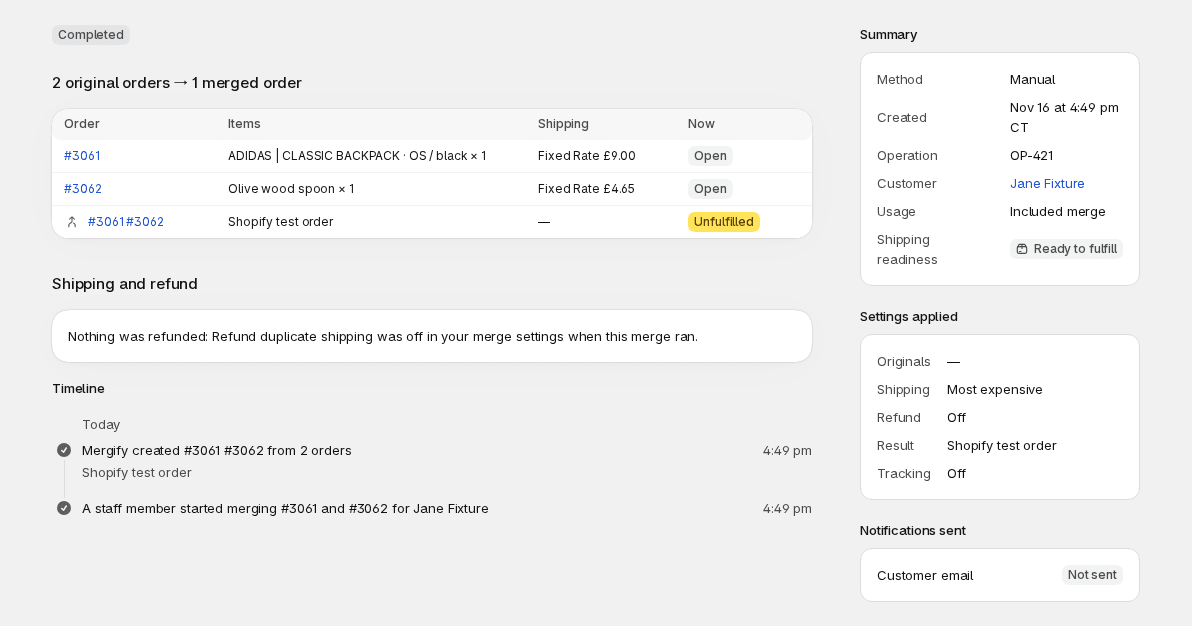
At the top:
- Open merged order (or Open draft order) opens the result in Shopify.
- Review undo starts an undo. It appears only on a merge that created its order and was not undone. It is dimmed, with an Undo isn’t available card, when an undo or a refund retry is already running or when the merge can’t be undone for one of the reasons on the undo page.
- Get help with this… opens the chat with Mergify support. The message is already written: it names the merge and the first step that needs you.
On a phone, Review undo and Get help with this… are under More actions.
A card under the badge explains the state when there is something to say:
- Waiting to start and Creating the merged order for a merge that hasn’t finished. Each step fills in as it finishes.
- Merged into a draft order for a draft. A draft isn’t an order yet: it becomes one when you send its invoice and the customer pays, or when you mark it paid.
- Nothing was created, Needs you and Undone, covered below and on the undo page.
- Historical details unavailable for a merge from before Mergify recorded each step. Mergify knows it created the merged order, but not whether the originals were archived, refunded or cancelled in ShipStation, so open the original orders to check them.
Then the page shows:
- A table headed like “3 original orders → 1 merged order”, listing the orders and what became of them. Items and Shipping are what each order held, and Now is where the order stands in Shopify today: Open, Archived, Cancelled, Fulfilled, Removed and so on. The merged order has its own row.
- Shipping and refund, with one row per original: the amount that was refundable and a badge, Refund recorded, Checking result or Failed. When nothing was refunded, it says why: Refund duplicate shipping was off in your merge settings, the orders had free shipping, the orders were drafts, or the merged order keeps all the shipping the customer paid.
- Timeline, every step the merge took, newest first and grouped by day: the order created, the originals archived, tagged or fulfilled, the refund, the customer email, the usage charge. A step that failed has a red icon. On a Failed merge it also carries a Failed badge, and on a Needs attention merge the badge is in the Needs you card.
- A side column with the Summary (Method, Created, Operation, Customer, Usage and Shipping readiness), Settings applied (what the merge was set to do to the originals, which shipping rule it used, whether it refunded, and its result type and tracking) and Notifications sent (the customer email: Sent, Not sent, Failed or Unknown).
Operation is the merge’s number, such as OP-1042. Shipping readiness says Ready to fulfill, Fulfilled, or Check ShipStation first (the name of the provider that failed, or Check your shipping integration first) when a shipping integration step failed. Settings applied shows what the merge ran with, so it can differ from your settings today.
Export your history
Section titled “Export your history”Export saves merges as a file you can open, keep or send. It sits in three places:
- At the top of History, for the merges your current filters show, or for every merge created between two days you pick (whatever the filters).
- In the bar that appears when you select merges, for the ones you selected.
- At the top of a merge’s page (on a phone, in More actions), for that merge alone.
Pick Summary or Full, and a format, then select Export. A banner at the top of the page shows the progress. When it reads Your export is ready, select Download. Select it again to download the file again.
- Summary is one row per merge: orders, totals, line items, customer, status and refund.
- Full adds, for every original order, its items, shipping and refund, plus what Mergify did to the original orders, the failed steps, the settings applied and the timeline.
Formats:
- CSV opens in Excel, Numbers or Google Sheets. Full has one row per original order.
- Plain text is a readable report to keep or send.
- JSON is for developers and other tools.
Dates and times are in your store’s time zone, except in JSON, which keeps times in UTC and names the store’s time zone at the top. Headings and sentences follow your admin language; names and titles you or your customers wrote stay as written. A file has no fields for emails, phone numbers, addresses, notes or customer tags. A failed step’s reason is the error text from Shopify or an app, as Merge details shows it.
A file holds at most 10,000 merges. With more, no file is made: pick a shorter range, or export a few months at a time.
When a merge fails
Section titled “When a merge fails”A merge ends one of two ways when something goes wrong, and the page says which.
Failed: nothing was created
Section titled “Failed: nothing was created”The merge stopped before it changed anything. The page reads Nothing was created: nothing was archived, refunded or cancelled in ShipStation, no email was sent, and you weren’t charged. When your orders are still open, the page says so. The first failed step in the Timeline gives the reason, for example:
- Some of these orders can’t be merged
- Shopify rejected the merged order
- This group changed since your review, so Mergify didn’t merge it
- Usage cap reached, which means the merge would have been charged more than what is left under your usage cap. See Plan & usage.
Open #1040 takes you to the first original order in Shopify, and Get help with this… opens the chat. If the reason is one you can fix, fix it and merge again from Orders.
Needs attention: the merge ran, but a step failed
Section titled “Needs attention: the merge ran, but a step failed”You don’t have to open the merge to see what failed: on a computer, point at its Needs attention badge in History; on a phone, the first problem shows under the badge.
The merged order exists, but a step after it didn’t work, such as a refund, a ShipStation cancellation, archiving the originals or the customer email. The page shows a Needs you card that lists each failed step. Use what it offers:
- Retry this step on a failed shipping refund. A window asks Refund $5.00 on #1040? (with your amount and order). Mergify checks Shopify first, then asks the payment gateway to refund that amount, and Shopify emails the customer when it goes through. While a refund is being confirmed it reads Checking result and can’t be retried. After you retry, it reads Retrying and Retry this step is dimmed until the result is confirmed.
- Retry this step on a failed ShipStation cancellation. A window asks Cancel #1040 in ShipStation? Mergify checks ShipStation first and cancels only what hasn’t shipped. Until it’s cancelled, the original can still ship from ShipStation.
- Get help with this… for any other step, and for any refund or cancellation that can’t be retried.
A usage charge Mergify couldn’t record isn’t listed: Mergify retries it itself, and on its own it doesn’t make a merge Needs attention.
A merge that finished with a failed undo step also reads Needs attention. See Undo a merge.